Welcome to
CARSPEL
.
Let's get you started.
Everything you need to make the most of your subscription — from your first fuel log to handing a car's full history to the next owner.
Perfect for one driver keeping tabs on one or two vehicles. Every essential tool you need to build a proper car history — fuel, service, trips, and your vehicle's complete story.
- Up to 2 vehicles in your garage
- Unlimited fuel & service log entries
- Full trip log with business/personal categories
- Vehicle detail — recalls, inspections, warranties, events, Journey timeline
- PDF & CSV reports (current-year trip log + illustrative mileage allowance)
- CSV import from Fuelio, MileIQ, Drivvo, TripLog and more
- Full data export at any time
- Safety recall alerts (NHTSA VIN-linked)
- Bell reminders for registration, insurance, service, inspections, driver licence
- Offline read cache on Android & iOS
- Vehicle log transfer — receive (buy) transferred history from a seller
- 63-language support
- Vehicle memories gallery — up to 20 photos, 5 videos, and 10 audio clips per vehicle
Getting Started — Sign up & onboarding
From download to your first vehicle takes less than five minutes. Carspel walks you through it step by step, and everything you enter here tailors the app to the way you drive.
Get Carspel from Google Play (Android). Tap Get it on Google Play and install. Open the app and tap Sign up to create your account with an email address and password.
Already have an account? Tap Sign in. If you've forgotten your password, tap Forgot password to receive a reset link by email.
After signing up, Carspel walks you through a short onboarding flow that collects a few essentials. These aren't just housekeeping — they directly shape how the app behaves for you.
- Your name — personalises your dashboard welcome and household
- Country & language — sets your measurement units and regional defaults
- Unit system — metric (L/100km, km) or imperial (MPG, miles)
- Default trip category — saves a tap every time you log a trip
You can change any of these later in Profile (see Section 11).
After onboarding, Carspel will prompt you to add your first vehicle. If you skip this, you can add it any time from My Vehicles (the Quick Action tile on Home). Tap +, then enter a nickname or a model to save. Everything else is optional and can be filled in later. When you're ready, these details make Carspel more useful:
- Nickname — how the car appears in your garage (enough on its own to save)
- Make, model, year — better labels, and used for recall lookup (year defaults to the current year if you leave it)
- VIN — 17-character ID that unlocks decode (make/model/year), NHTSA recall matching, and scan/OCR on mobile (highly recommended)
- Fuel type — petrol, diesel, LPG, bi-fuel (petrol + LPG), electric, or plug-in hybrid
- Licence plate / registration — for records and reminders
- Purchase date & odometer — anchors your vehicle's timeline
- Vehicle photo — makes your garage easy to navigate at a glance
On Family, Ultimate, and Trial, Trip Log can detect drives in the background. See Auto Trip in the Trip Log section.
Home — Your morning glance
The Home tab is your dashboard — a at-a-glance view of what's happened with your vehicles lately and what might need your attention. It's the first screen you see every time you open the app.
Pull down anywhere on the Home screen to refresh — this reloads recent activity and checks for new reminder data from the server. You'll see a personalised welcome greeting at the top.
The dashboard includes three key areas: Quick actions, a Reminders callout, and a Recent activity feed showing the last 14 days of fuel and service records across all your vehicles. Fuel rows use distinct icons — droplets for petrol or diesel, an LPG tank for propane/LPG fills, and a zap for electric charges — matching Add entry, Fuel & energy, and Journey.
The Quick actions section gives you one-tap shortcuts to the most common tasks:
- My Vehicle(s) — jump to your garage
- Insights — household observations pulled from your own logs: what needs attention, where the money's going, and automatic month-to-month comparisons
- The Journey — this vehicle's life as a road timeline. One car opens it immediately; several cars show a picker (your preferred vehicle is listed first)
Insights is included with your trial, and with Family and Ultimate subscriptions. On Basic, tapping the tile shows a preview of what Insights offers rather than live data from your logs — your fuel, service, and trip records are already there and waiting if you upgrade.
When the bell icon in the top-right of the app bar shows a badge, you have reminders waiting. Tap it to open the reminders sheet. The same information appears in the Reminders callout card on the dashboard.
Carspel generates reminders for:
- 🔴 Safety recalls — open NHTSA campaigns linked to your VIN
- 📋 Registration expiry — when your vehicle registration is coming due
- 🛡️ Insurance renewal — based on dates you've recorded
- 🔧 Scheduled service — when your vehicle is due for maintenance
- 🔍 Inspections — upcoming or overdue inspection records
- 🪪 Driver licence expiry — based on the expiry date in your Profile
- 🔄 Vehicle transfer — when someone sends you a vehicle history transfer
- 🚿 Unused wash access codes — when a scanned car wash code from a fuel receipt hasn't been used yet
- 📅 Tax-year opening odometer — a reminder to record your odometer reading at the start of a new tax year
Tapping a reminder takes you directly to the relevant screen — for example, a recall reminder opens the vehicle detail scrolled to the recall section.
Fuel Log — Every fill-up & charge
The Fuel log tab is where you record every visit to a petrol or LPG station, or a charging point. Over time, these records power your economy charts, cost tracking, and the history report you hand to a buyer.
The Fuel log tab shows all your fill-up and charge records in reverse-chronological order. If you have more than one vehicle, a vehicle filter strip appears at the top of the list — tap a vehicle chip to see only its records, or leave it on All to see everything.
Each row shows the date, vehicle, fuel type, volume, cost, and odometer reading at a glance. A leading icon matches the fill type — droplets for petrol or diesel, an LPG tank for propane/LPG, and a zap for charging. Tap any row to view the full details or make edits.
Tap the + button (FAB) at the bottom right of the Fuel log to add a new entry. You'll be asked to fill in:
- Vehicle — which car this fill is for. If the list above is filtered to one car, that car is already selected. If it is on All and you have more than one car, choose the vehicle here. The same rule applies on the Service log.
- Date & time — defaults to right now
- Fuel type — petrol, diesel, LPG, or electric (kWh). On a bi-fuel car, choose petrol or LPG for each fill
- Volume — litres, gallons, or kWh depending on fuel type
- Cost — total amount paid at the pump or charger
- Odometer — your current mileage reading (used for economy calculations)
- Station / location — optional, but useful for tracking favourite stations
- Notes — anything you want to remember about this fill-up
- Receipt photo — snap or attach evidence Android iOS
Tap any row in the Fuel log list to open the entry. From here you can edit any field — perhaps you need to correct the volume or add a receipt you didn't have at the time.
To delete an entry, open it and use the delete option in the edit screen. Take care — deleted fuel entries affect your economy calculations and can't be recovered.
Enter the receipt the way it is printed: the country you are in, the currency, and the quantity in litres, gallons, or kWh as shown. Carspel converts the money into your home currency, and the quantity into your household units, using the exchange rate on that receipt's date. Totals on reports stay in your home currency.
When a report or CSV for that period includes a visiting-country fill, service invoice, or trip cost, a note says amounts entered in another currency were converted. The CSV can also include the amount and quantity as you typed them.
The odometer stays in your household unit (kilometres for metric, miles for imperial or hybrid) unless you mark that car. On the vehicle screen, under current status, Cross-border dash is off to start. Turn it on only if you sometimes switch the cluster between kilometres and miles. Fuel and service receipts for that car then ask which unit the dash is showing, and Carspel stores the reading in your household unit. Leave it off and every reading stays in the household unit. Turning it off clears a remembered switch.
Service Log — The truth layer for maintenance
The Service log is where you build the maintenance record that protects warranty claims, informs buyers, and tells the story of how well a car was cared for. Every oil change, brake job, and dealer visit lives here.
The Service log tab lists all your maintenance and repair records, newest first. Like the Fuel log, a vehicle filter strip at the top lets you narrow down to one specific vehicle or see all records together.
Each row shows the service type (category and subtype when set), date, odometer, shop or technician, and cost at a glance. Tap any row to see the full record including any attached documents.
Tap the + button to add a new service record. The form covers:
- Vehicle — which car this service is for
- Service type — pick a category (Routine Maintenance, Brakes & Suspension, Tires & Wheels, and more — see Service categories & subtypes)
- Date — when the work was done
- Odometer — recommended; leave blank for work without mileage (e.g. car wash, cabin filter)
- Shop / mechanic name — who did the work
- Cost — total amount paid
- Notes — parts used, warranty details, next service interval
- Attachments — photo or PDF of the invoice/receipt Android iOS
Tap Service type to open a category picker — not a free-text field. Categories group your log for reports and trip wear estimates.
- Routine Maintenance, Brakes & Suspension, Engine & Transmission, Tires & Wheels, Inspection & Emissions, Body & Glass, Repair / Fix, and Other
Most categories show optional Subtype chips underneath — tap one to narrow the entry (for example, Body & Glass → Car wash or Windshield).
- Something else (optional) — add custom text when no chip fits
- Other — Describe the work is required (no chips)
- Repair / Fix — optional describe field only; no subtype chips
When you resolve a safety recall in your vehicle detail, Carspel can pre-fill a service entry with the recall campaign details — vehicle, date, notes, and the recall identifier are automatically populated for you. This links your recall resolution directly to a timestamped, documented service record.
When you add or edit a service entry, the form includes an optional NEXT SERVICE section. If Update vehicle's next service is on and you enter a distance and/or months interval, saving advances the vehicle's Next Service Odometer and Next Service Date on the vehicle record — the same fields that drive scheduled-service bell reminders.
After you save, a brief message at the bottom of the screen confirms the new values (for example, Next service updated to 202,874 km / Nov 22, 2026). Tap OK to dismiss it. Tap Undo only if you want to revert those reminder fields — your saved service entry stays. If you do nothing, the message closes on its own after a few seconds.
My Vehicles — Your garage
My Vehicles is your garage hub — all your cars in one place. On Basic you can have up to two vehicles. Tap a card to dive into any vehicle's complete history.
Each vehicle appears as a card showing the vehicle name, photo, make/model/year, and a quick summary. The label itself changes between "My vehicle" and "My vehicles" depending on how many you have — a nice touch that keeps things clear.
Tap Add vehicle (the + button) to bring a new car into your garage. See the card below for the VIN-first workflow and what you need to save.
When you sell or retire a vehicle, you don't have to delete it — archive it first. Archived vehicles no longer appear in your active garage, but the complete history is preserved under My Vehicles → Inactive vehicles (after Buying or selling?). From there you can view, restore, or permanently remove a car.
Share a vehicle log while the car is still active. After a sale or a former-member continuation, archive (or let Carspel archive) this household’s copy. See the Family guide section Buying, selling & transfers for the full process.
You only need a nickname or a model to save a new vehicle — everything else is optional and can be filled in later.
Starting with the VIN is the fastest path to a complete garage record:
- Decode — tap Lookup to fill make, model, and year from NHTSA public data (review before saving)
- Recalls — an entered VIN enables automatic NHTSA safety recall matching on the vehicle detail screen
- Where to find it — door jamb sticker, base of the windshield, registration, or insurance card
- Enter it — type or paste (Carspel uppercases automatically); on mobile, scan the VIN barcode or sticker
- OCR — extract the VIN from a photo of your registration or insurance document
- Then add — fuel type (including LPG or bi-fuel), registration, purchase date, odometer, and a photo when you're ready
Vehicle Detail — One car's complete life story
Tapping a vehicle in your garage opens the Vehicle Detail screen — a single, scrollable page that brings together everything Carspel knows about that car. This is the heart of the app.
At the top of the Vehicle Detail screen you'll find up to three action buttons depending on the vehicle's state: Share / Transfer (when you're eligible to transfer the vehicle's log to a buyer), Journey (the visual timeline — covered in the next section), and Edit (to update any vehicle field).
The top of the Vehicle Detail shows your vehicle's current status — its latest odometer reading (pulled from recent fuel entries and trips) and the number of days since its last service.
You can also record explicit Odometer snapshots — handy for anchoring the record at a specific date and mileage without adding a fuel entry. These appear in the vehicle timeline and are included in reports.
Under current status, Cross-border dash is off unless you turn it on. Use it only when this car crosses a border and you sometimes switch the cluster between kilometres and miles. Fuel and service receipts then ask which unit the dash is showing. Leave it off and every odometer stays in your household unit.
If you entered a VIN, Carspel automatically checks NHTSA for open safety recall campaigns. Any active recalls appear prominently in a recall strip. For each recall you can:
- Review — read the campaign details and safety risk
- Mark as resolved — record that the dealer completed the work (optionally links to a service entry)
- Snooze — temporarily dismiss if you've booked it in but the work isn't done yet
Record formal vehicle inspections — roadworthy checks, emissions tests, annual safety inspections, or any other inspection your region requires. Each inspection record captures the date, type, outcome, odometer, inspector, and any notes.
Upcoming or overdue inspections will trigger a bell reminder so you're never caught out. The inspection due date contributes to the health overview you see in Vehicle Detail.
Not everything that happens to a car is a planned service. The Incidents & Events section lets you record:
- Accidents or collisions — with photos, other-party details, and an estimated cost
- Parked-car damage — a dent or scrape you didn't see happen
- Flat tires, punctures, and battery problems
- Traffic and parking fines — with the amount due, payment deadline, and ticket reference
- Waypoints and checkpoints — tolls, borders, ferries, or client visits you want dated with location
- Any other notable moment in the car's life
Accidents, damage, flat tires, battery problems, and other events appear in the Journey timeline and in the full household report, giving buyers a complete, honest picture of the vehicle's history. Parking and traffic fines are recorded here too, but stay off the Journey road so it isn't cluttered with things that happened to you rather than the car.
Tap Log event to open the form: pick a vehicle and category, then add a date. Location, notes, and an odometer reading are optional — an odometer reading places the event on The Journey more precisely, but it's still placed correctly by date without one. Accidents and damage add fields for an estimated cost, the other party's details, and a plate-scan photo; fines add the amount due, payment deadline, and ticket reference. Every category supports up to 12 photos or videos.
You can also log an incident or a light waypoint from a trip (Live trip or Edit trip) so the event is linked to that drive with location and odometer when available. See Section 8 — Incidents & waypoints on a trip for when to use each option.
Track warranty coverage separately from service invoices in the Warranties section. This is especially useful when a repair should have been covered under warranty — having the warranty details in the same record helps you push back with the dealer.
Each warranty entry records the type (manufacturer, extended, third-party), start and end dates, coverage details, and any claim history.
Scroll toward the bottom of Vehicle Detail to find a Financial summary — a roll-up of what this car has cost you across fuel, service, and other recorded expenses. Useful for understanding true cost of ownership.
Below that, the Performance section shows economy metrics from your fuel and energy log. Pure petrol, diesel, and LPG vehicles see one fuel-economy figure (L/100km or MPG). Pure electric vehicles see kWh per 100km (or your chosen EV display unit).
For plug-in hybrids, Carspel shows two separate tracks — not one blended number. Yearly fuel economy uses only liquid fill-ups (litres or gallons between petrol stops). Yearly efficiency uses only charging sessions (kWh between charges). That is deliberate: older apps often divide a tiny petrol top-up by every kilometre you drove — including hundreds of electric km — and produce nonsense figures such as 0.5 L/100km or 600 MPG. Carspel does not combine petrol and electricity into a single headline efficiency. Log both fills and charges; read both lines on Vehicle Detail and in the performance graph (Fuel (liquid) vs Electric (charging)). The Energy & cost summary report lists litres, kWh, and costs separately.
For bi-fuel (petrol + LPG) vehicles, Carspel likewise keeps two liquid-fuel tracks — petrol economy and LPG economy — each calculated only against fills of that same fuel. Both fuels share one odometer, but a petrol fill is never divided by the distance since an LPG stop (or vice versa). Log each fill with the correct petrol or LPG choice; read both lines on Vehicle Detail and in the performance graph.
If the vehicle has a VIN, the vehicle screen can show a public VIN brief built from free government databases: NHTSA, and Transport Canada where a Canadian profile applies. It lists owner complaints and recall campaigns for that make, model, and year.
On the phone app, open the vehicle and tap Engine health check. Turn Bluetooth on, plug in an ELM327 OBD2 adapter, turn the ignition on, then tap Connect the adapter inside Carspel. The check reads engine and emissions fault codes when you tap it. It does not run in the background, and it is not on the website. Battery-electric cars do not show this row, because a standard adapter cannot read a manufacturer's battery-health data.
You get a plain-language result — All clear, Worth a look, Book it in, or Stop driving — with longer explanations in English or French. You can share a PDF with a mechanic and link a service entry as the repair. Clearing a code is recorded, and it is not a repair by itself.
When you sell a car privately, Carspel can turn the vehicle you already track into a clean bill of sale PDF — ready to print, sign, and share. Open the vehicle → Create bill of sale. It works on Basic, Family, and Ultimate while the car is active, sold, or archived.
The form pulls year, make, model, colour, VIN, and plate from the vehicle record. You add what the paper needs for the deal:
- Seller and buyer — full names (more than one person on either side), addresses, optional seller email
- Sale details — date, price with clear currency (for example CAD $), odometer at handover, optional payment method, liens, and notes
- As-is terms — optional standard private-sale clauses so both sides know the car is sold without warranty from the seller
- Signature lines — printed names under each signature block, and the VIN repeated in the footer on every page
Choose Create & save to keep the PDF with the vehicle, or Create, save & share to hand it off immediately. The document stays in the car’s ownership trail so you are not hunting for a scan weeks later.
📝 Editing Your Vehicle
Tap the Edit button in the app bar to update any vehicle detail. You can change the photo, correct the VIN, update the odometer baseline, mark the vehicle as sold, or change the lifecycle status. The Edit button is hidden while a vehicle is in certain pending states (like a pending log transfer).
On Basic, you can receive a vehicle history if your subscription is active (or free-forever). Open the share link, then review the request from My Vehicles → Buying or selling? → Vehicle log transfers (Buying tab), or follow a bell reminder. After a sale you confirm a purchase price; the car appears as a preview before it becomes active. For a former-member continuation there is no purchase price and the car lands active.
On a sale the owner may mask personal details. A former-member continuation is a full unredacted copy, including trips and memories. The Family guide Section 8 walks both paths and archive afterward.
Note: Initiating a transfer as the seller (to hand off history when you sell) requires Family plan or above.
The Journey — Your vehicle's story, visualized
The Journey is one of Carspel's most distinctive features — a beautiful visual road timeline that turns your dry database of dates and numbers into an actual story. Open it from Home → Quick Actions → The Journey (you'll pick a vehicle if you have more than one), or from the roadway icon in any Vehicle Detail app bar.
The Journey presents your vehicle's life as a visual timeline — imagine driving down a road where each milestone you pass is a fuel stop, a service appointment, a recall resolution, an incident, or a memorable trip. Events appear in chronological order as you scroll, making it immediately clear when things happened relative to each other.
Tap any signpost along the road to open a quick summary of that event. From there, View full details takes you straight to the original entry in its log — whether that's fuel, service, a trip, or something else.
It's the answer to "when did we last service this car?" and "how long did the last set of tires actually last?" — all in one beautiful view.
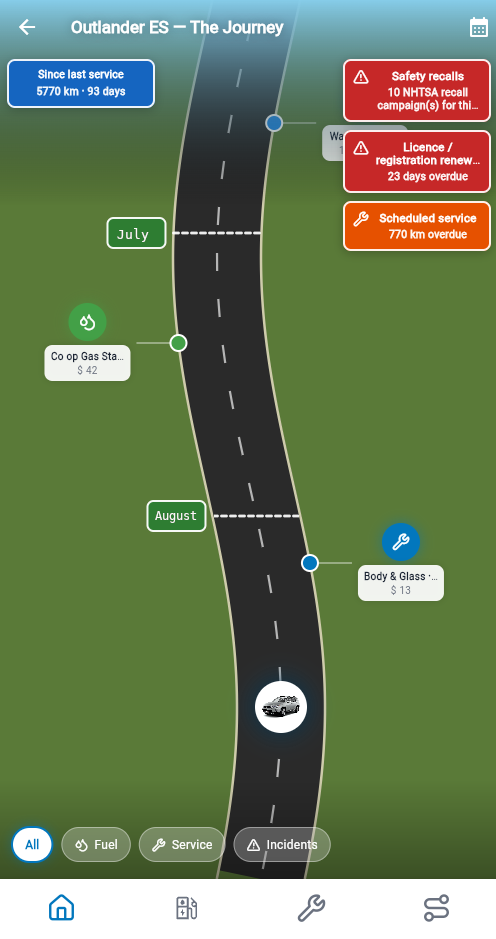
The Journey timeline uses different colours and icons for each energy type: droplets for petrol or diesel fills, an LPG tank glyph for propane/LPG fills, and a zap for electric charging sessions — so on a plug-in hybrid or bi-fuel car you can see at a glance how those energy sources balance over the car's life, and how that balance might have shifted over time. The same glyphs appear on Add entry, Fuel & energy, and Home recent activity.
Service milestones, inspections, recalls resolved, incidents, and trip waypoints all appear as distinct markers on the timeline, each with its own icon and context card. Tap any milestone to see its details. Parking and traffic fines stay in Incidents & Events but are kept off the Journey road so the timeline stays readable.
Trip Log — Mileage, journeys & tax records
The Trip Log is how Carspel tracks your journeys — not just as a mileage logbook, but as a record that's genuinely useful at tax time, for business expense claims, and as the kind of documentation that survives an audit.
Trip Log is one of the four main bottom tabs — Home, Fuel log, Service log, and Trip log. Tap Trip log to open it. You'll see a list of all recorded trips, filterable by vehicle using the same chip-strip filter as Fuel and Service logs.
Tap the + button to log a trip. You'll enter:
- Vehicle — which car you drove
- Who drove? — in a household with more than one member, pick the person who drove. Solo households skip this; Carspel stores the trip against you automatically.
- Date — when the trip took place
- From / To — where the trip started and ended (Places search on mobile helps pick addresses — it does not compute mileage)
- Distance — type it manually, tap Fill distance from odometer when start/end readings exist, or use Live trip GPS tracking on mobile when it is available (see Live trip vs Auto Trip below)
- Trip category — Business, Personal, Medical, Charity, or custom
- Purpose / notes — client name, meeting purpose, or any memo useful at tax time
- Odometer — optional, but improves accuracy of reports
- VAT / GST (optional) — recoverable tax on the trip. Australia and New Zealand show GST; other countries show VAT. Same stored field; the label follows your Profile country.
When you enter a distance, Carspel shows an estimated operating cost on Add trip, on trip cards in the list, and on Auto Trip review drafts when your fuel and service logs have enough data — built from your logged data, not industry averages.
- Energy — rolling fuel or charge economy from your fuel log × your latest unit price
- Tire wear — from your latest Tires & Wheels service when you logged cost and warranty km on the odometer
- Maintenance — non-tire service spend over your recent logged distance, allocated to this trip
Live trip is the Start control on Add trip. It tracks GPS only while that screen is in play — keep Add trip available, and after about four minutes stopped Carspel suggests ending the trip. Live trip is on every active plan, including Basic.
Auto Trip (Trial / Family / Ultimate) detects drives in the background. Open it from the Auto Trip row at the top of Trip Log — Profile has a shortcut to the same screen. Set Active, Off, or Paused. When Active, Add trip hides Live trip so the same drive is not recorded twice.
Detected drives appear at the top of Trip Log as drafts. Confirm, Discard, or mark Passenger — they do not enter your log until you Confirm. If you were not driving, use Passenger rather than starting Live trip. Live trip returns when Auto Trip is Off or Paused, and it is always available on Basic (Auto Trip is not on Basic).
Each review banner shows distance, drive time, and From / To labels (reverse-geocoded from GPS when available). In multi-vehicle garages, pick the vehicle before Confirm. In a household with more than one member, pick Who drove?. Carspel previews start/end odometer from your last trip. When your logs support it, you also see an estimated operating cost — the same fuel/energy + wear model as Add trip (see Trip operating cost above). The same banner appears on Home and Trip Log. After Confirm, tap Edit on the snackbar to adjust category, notes, or odometer.
If you will be parked for a long time, turn Auto Trip Off or Paused to save battery. On Android, allow notifications and Allow all the time for location. On iPhone, set Location to Always.
After you turn Auto Trip on, press Home — don’t use Close all. Closing all recent apps (or force-quitting Carspel) can stop drive detection on some phones, especially Samsung. Leaving with Home keeps background detection running; swiping only Carspel away is milder than Close all but still riskier than Home. iPhone has no Close all — the equivalent is swiping Carspel up in the app switcher; leave it in Recents.
Android — keep detection alive. On Samsung and some other phones, open Recents, tap the Carspel icon on its card, and choose Lock this app so Close all skips Carspel. Stock Pixel often has no lock — Home still matters. In Settings → Apps → Carspel → Battery, set battery to Unrestricted, and keep Carspel off any sleeping apps or background-limits list (Samsung Device Care). Unrestricted alone is not always enough. Allow Physical activity so Carspel can tell driving from walking. Allow notifications so the ongoing Detecting drives… notice can appear.
iPhone — do not force-quit. Swiping Carspel up in the app switcher fully stops background detection — leave it in Recents and return with Home. Set Location to Always, turn on Precise Location, allow Motion & Fitness, and leave Background App Refresh on for Carspel. While Active you may see the system location indicator; that is normal. Notification permission is not the same gate as on Android.
If you see Background tracking stopped unexpectedly, that means the location service stopped while Auto Trip was still set to Active — not that Carspel was removed from your phone. Carspel may still open normally. Open the app, confirm Auto Trip is Active, then leave with Home before your next drive.
When Auto Trip is Active and your phone goes still after a drive, Carspel keeps the last GPS pin so you can walk back to the car. Open it from the vehicle, from Trip log, or from the Home card when a pin is fresh (less than two days old). The pin is about where the phone stopped — not the painted stall number.
Walk back opens walking directions in Maps. Share map link sends a maps URL to someone who is not in your household. Auto Trip must have been on for that drive — Carspel cannot invent a pin if detection was Off.
To show the card on Home, leave Show Where did I park? on Home on in Profile → Trip defaults. Turn it off if you want a cleaner Home; the pin stays on Trip log and the vehicle.
Trip categories are the key to making your mileage logbook tax-useful. Carspel uses categories to split your trips for tax reporting — your business mileage is separated from personal use, which is exactly what the ATO, IRS, CRA, HMRC, and most other tax authorities need to see.
When you generate a Trip log summary report (Tools menu → Reports), Carspel uses these categories to produce a structured mileage export for the period you choose. See Section 9 below for every report option.
On your 30-day trial, Family, or Ultimate plan, when adding or editing a trip on your phone, you can attach Trip Memories — photos, short videos, and voice notes that bring that journey back to life. These memories are stored with the trip, not loose in your camera roll.
On Basic (after trial), trip logging for the current tax year is still included; trip memories require Family plan or above.
- 📷 Photos — from camera or gallery
- 🎥 Short video — native capture on Android/iOS
- 🎙️ Voice notes — spoken memo attached to the trip
- 📝 Text notes — a written memo with optional GPS (handy on web too)
Browse all your trip memories across all journeys from the Tools menu → Trip memories library.
While a Live trip is running — or when you open a saved trip to edit — Carspel shows On this drive with two quick actions. Both open the full event form and can pre-fill location (from GPS when available) and an estimated odometer. Saved events are linked to that trip and also appear under the vehicle's Incidents & Events list.
- Log incident — for things that went wrong or need a full record: collision, damage, flat tyre/tire, breakdown, or anything you'd want for insurance or a buyer disclosure. Use the full form for photos, other-party details, and costs when needed.
- Add waypoint — a lighter checkpoint on the drive: toll, border, ferry, client visit, or another stop you want dated with where and odometer. Choose the Waypoint / checkpoint category so routine stops stay distinct from accidents and fines.
Both kinds show up on The Journey as milestones on the road (alongside fuel and service), so a long drive's story includes what happened along the way — not only the start and end of the trip. Open Journey from Vehicle Detail to scroll those markers in time order.
Sometimes a single journey is logged as several separate trips — for example, one leg per day on a cross-country drive, or separate entries for each stop on a long business run. Combine trips merges those legs into one trip record while keeping photos, videos, voice notes, and receipt attachments from every leg.
The combined trip uses the earliest leg's date as its start, the first leg's "from" and the last leg's "to" as its route, and rolls up distance, toll/parking/VAT or GST amounts, and trip memories into a single entry. Intermediate stops are not lost — they are written into the trip's Notes field under a Merged trip segments heading so your audit trail stays intact.
How to combine trips
-
Open the Trip log bottom tab.
-
Tap Combine trips in the top bar (you need at least two trips in the list).
-
Tap each trip you want to merge. All selected trips must be for the same vehicle — you cannot combine trips from different cars.
-
Tap Combine trips on the selection banner to open the preview screen.
-
Review the summary: combined route, total distance, date span, memory counts, and receipt count.
-
Choose one category for the whole merged trip (Business, Personal, etc.) — even if the original legs used different categories.
-
Read the warnings, tick the confirmation boxes, and tap Combine trips to finish.
Limits when combining
Merged trips allow three times the usual per-trip caps:
- Photos: up to 36
- Videos: up to 12
- Voice notes: up to 15
- Receipt attachments: up to 24
If the selected trips exceed any of these totals, the preview screen will block the merge until you remove memories or receipts from one or more legs.
When the combined journey spans more than one day and you logged end odometer readings, Carspel also adds a Daily end odometer section to the Notes field — one line per day with the date and reading — so a multi-day logbook stays readable.
Carspel automatically assigns the merged trip to the appropriate logbook period when your trips used the same period, when one period covers the full date span, or — if they differ — the period used on most of the selected legs.
Reports — Export & share your records
Carspel's reports turn your raw records into structured, professional documents — not screenshots or rough exports, but clean PDFs and spreadsheets you'd be confident handing to a buyer, accountant, or auditor.
Open the Tools menu (⚙️, top-right on any main tab) and select Reports. You'll see a report selection screen where you choose the type of report you want, set the date range and other options, then generate and share it.
The most comprehensive export: fuel records, service history, cost totals, and economy statistics for your selected vehicle(s) over a chosen date range. Includes any attached receipts context.
Available as PDF (formatted, print-ready) or CSV (for spreadsheet analysis). Share via your device's share sheet, email directly from the app, or download to your device.
Generate a report of all safety recall campaigns associated with your vehicles — including their status (open, resolved, snoozed), campaign identifiers, and any linked service records. This is particularly useful as part of a pre-sale disclosure package.
A focused report on your fuel and energy spending — total cost, total volume, average economy, and cost per unit over your chosen period. Available in PDF and CSV. Particularly useful for EV, plug-in hybrid, and bi-fuel LPG owners who want to understand their charging or LPG costs vs petrol costs over a season or year.
A focused export of your service records — every entry with date, category and subtype, shop, cost, and odometer — for your chosen vehicle(s) and a custom date range.
Available as PDF or CSV. Attachments on individual service entries — receipts and invoices — are listed by filename at the end of the PDF, the same as the Trip log summary's receipt appendix; images themselves aren't embedded.
The Trip log summary report turns logged journeys into structured PDF or CSV exports — distance by category, a deductible mileage subtotal, a detailed trip table, and an optional illustrative mileage-allowance column for your Profile country. Designed for mileage and trip-expense documentation; not tax advice.
On Basic, the report covers the current tax year only. Trip-specific filters and toggles appear once you select this report type on the Reports screen.
Each export includes distance rolled up by trip category, a deductible mileage subtotal (business + medical + charity; commute excluded), a detailed trip table, an optional country mileage-allowance column when a published table exists, and optional year-opening odometer readings. PDF and CSV use the same filters and date range.
Options & output
How to open
- Tools menu (⚙️, top-right) → Reports.
- Choose Trip log summary in the report list.
- Set trip options, Vehicle scope, then Email or Share PDF/CSV at the bottom.
Profile settings that matter
- Tax year start month (Profile) — defines tax-year boundaries for the report date picker (January by default; April for Australia-style years, etc.). The allowance column for the United Kingdom, New Zealand, and South Africa uses that country's official tax year (6 April, 1 April, and 1 March) even if this month is different.
- Country (Profile) — controls trip category chips, which illustrative mileage-allowance switch appears, whether the trip tax field is labelled GST or VAT, and currency on expense fields.
Date range — Basic
Always your household's current tax year (from your tax-year start month through the day before the next year starts). You cannot pick a different year or custom range on Basic.
Date range — Family & Ultimate
- Tax year — pick any of the last six tax years from the dropdown (label + inclusive dates shown).
- Custom dates — tap Choose dates for any inclusive start/end (quarter, new-job period, etc.).
Vehicle scope
Dropdown below the trip options: All vehicles in your garage, or one vehicle only.
Categories
Filter chips — All categories is on by default, so every country chip is included. Tap All categories to select every chip. Tap one category while All is on to export only that category; tap more chips to add them. A slice export still notes that the full period log remains in the app. US order: Business, Commute, Medical, Charity, Personal. Tip: use Deductible categories only instead of manually deselecting Personal and Commute.
Deductible categories only (switch)
When on, only Business, Medical, and Charity trips are included. The PDF still shows a Deductible mileage subtotal when trips exist; Commute is never counted in that subtotal.
Toll, parking, or tax only (switch)
When on, only trips with some toll, parking, or VAT/GST amount recorded. Uses the combined of those three fields, not mileage.
Minimum combined amount (optional field)
Only trips whose toll + parking + tax total is at least this amount (your currency symbol is shown as a prefix, e.g. $ 25). Leave empty for no minimum. Works together with the toll/parking/tax switch when both are on.
Include mileage-allowance column (switch — label follows your Profile country)
Adds an illustrative money column from published official tables for that country. Not tax advice — confirm with your adviser. Carspel never invents a rate: if there is no table for that country, vehicle, or year, the amount is left blank and kilometres still export.
Rates are loaded from Carspel when you are online, with a bundled snapshot if the server is unreachable. They are not a live feed from the tax authority. When a mid-year official change is published (for example IRS), the trip date picks the matching window.
What each country uses
- United States — IRS standard mileage (business, medical, charity). Confirm at irs.gov.
- Canada — CRA-style cents per kilometre on business km, with the 5,000 km band from tax-year YTD. Medical km are listed and not priced (no invented medical dollars). A 40/80 km one-way footnote appears on the PDF.
- Australia — ATO cents-per-km method for the published financial year (5,000 km cap). GST, not VAT, on trip tax labels. Logbook method is not calculated.
- United Kingdom — HMRC approved mileage (cars/vans) on the 6 April–5 April year. Kilometres convert to miles. After the last published window the amount is omitted.
- Ireland — Revenue.ie civil-service rates per vehicle. Engine size (or BEV) picks the column; missing cc on a non-electric vehicle omits euros rather than guessing.
- New Zealand — IRD kilometre rates on the 1 April–31 March year. The first 14,000 km band is all travel on that vehicle (personal fills the band, is not priced). LPG / bi-fuel omit NZD. GST on trip tax labels.
- South Africa — SARS simplified cents/km for the published 1 March–28 February window. Deemed-cost / cost-scale is not calculated.
The list above is only where Carspel can attach an illustrative published rate to each trip. Every country still gets the same Trip log summary — business vs personal categories, distances, purpose, from/to, odometer, tolls, parking, VAT or GST, receipt filenames, and a PDF or CSV you can send to an employer or adviser. Apply your own official rate in a spreadsheet if you need a money column. We add more published tables as demand grows; we never invent a rate to fill the gap.
Include year-opening odometer (PDF) (switch, on by default)
Adds an optional appendix: one opening reading per vehicle at the report start date — separate from per-trip start/end odometer in the detail table.
Shows Opening confirmed · date when you saved a tax-year-start snapshot on that date; otherwise Latest in app (not report start). Turn off for a shorter PDF if trip rows already include odometer.
What the PDF contains
- Household & vehicle summary, report parameters (tax year + inclusive dates), and a disclaimer.
- Distance by category table and Deductible mileage subtotal (business + medical + charity).
- Trip detail — one row per trip: date, time, vehicle, category, distance, from/to, purpose, odometer (plain digits, like a dashboard), toll/parking/VAT or GST, receipt count, optional country allowance, notes. Table headers repeat on each page.
- Receipt file names appendix when trips have attachments (filenames only — images are not embedded).
- Year-opening odometer by vehicle appendix when that switch is on.
CSV export — same filtered trips and columns as the detail table; handy for Excel, Google Sheets, or your accountant's tools.
Confirm year-opening odometer (optional, stronger appendix)
- Open the vehicle from your garage → confirm the tax-year odometer / year-opening reading for the tax year that matches your report start date.
- You can record odometer snapshots on the vehicle timeline anytime; only tax-year-start snapshots on the report's first day get the "Opening confirmed" label.
Example workflows
- End-of-year for your accountant (Family): Trip log summary → Tax year → All vehicles → Deductible categories only on → Email PDF.
- Country allowance check: set Profile country (US, Canada, Australia, UK, Ireland, New Zealand, or South Africa) → enable the mileage-allowance switch → review the column with your adviser.
- Parking/toll reimbursement: Toll, parking, or tax only on → optional minimum amount → Custom dates (Family+) → Share CSV.
Tools menu ⚙️ — App shortcuts & settings
The Tools menu (⚙️ gear icon, top-right on any main tab's app bar) opens a pop-up with shortcuts to every major utility in Carspel. Here's everything in that menu and what it does.
📥 Import data — Bring structured history from CSV or Excel files exported by Fuelio, Drivvo, TripLog, and most other apps (fuel and service rows), plus MileIQ trip CSVs into the trip log (trips only — MileIQ files do not create fuel or service entries). Carspel maps columns to its own fields; if the format is unusual, you can map columns manually. Years of history can be imported in minutes. Also provides access to a backup-restore import option.
📤 Export data — Download a complete export of your household's data in CSV format. This is your data — take it with you at any time, back it up to your own storage, or move it to another service.
📊 Reports — Opens the full Reports hub (covered in Section 9 above).
❓ Help — Opens the in-app Help index: popular topics in this User Guide, plus the icons reference. Help used to live on Home Quick Actions; it now sits here so The Journey can take that Home slot.
👤 Profile — Your account settings, preferences, and household management. Covered in detail in Section 11 below.
💳 Compare plans — A side-by-side view of Basic, Family, and Ultimate tiers so you can see exactly what's included at each level. Tap Subscribe to choose a paid plan; billing is handled by your phone's app store (Google Play on Android, the App Store on iPhone).
📸 Trip memories — The Trip Memories library: a browsable collection of all the photos, videos, and voice notes you've attached to trips, across all vehicles and all time.
🔑 Change password — Update your account password. You'll need to enter your current password to confirm. Takes effect immediately.
🚪 Sign out — Ends your current session and returns you to the sign-in screen. Your data is safely stored in the cloud — signing out does not delete anything.
If you've exported a full JSON backup of your household before (via Export data), you can restore it from Import data → Carspel backup → Restore backup (JSON).
Choose your backup file and Carspel shows a preview — how many vehicles, fuel records, service entries, and trips it contains — before anything is restored. Confirm to proceed.
If a record in the backup already exists in your household, Carspel warns you about the duplicate rather than silently creating a second copy.
Profile — Your account, preferences & household
The Profile screen (Tools menu → Profile) is where you manage everything about you: personal information, app behaviour preferences, household settings, and your vehicles' admin details. There's more here than many users realise — take a few minutes to set it up properly and the whole app works better.
👤 Personal Information
This setting controls the unit label for electric driving efficiency on EVs and plug-in hybrids. It does not change your liquid fuel economy (petrol, diesel, or LPG) — that follows Unit system above.
Formats in the dropdown
- kWh per 100 km (EU/CN) — energy used per 100 km; lower is better. Common in Europe and China.
- kWh per 100 mi — energy per 100 miles; lower is better. Handy when you think in miles but want a fixed-distance energy figure.
- Miles per kWh (US/UK) — distance per kWh; higher is better. Popular with US EV owners.
- MPGe (US EPA equivalent) — miles per gallon equivalent from logged mi/kWh × 33.7; higher is better. Shown as a whole number. Electric charging only — not blended with petrol MPG.
- Kilometres per kWh — metric distance per kWh; higher is better.
- Watt-hours per km — compact metric (Wh/km); lower is better. Used by some manufacturers and charging apps.
Where you will see it
- Vehicle Detail — yearly electric efficiency; on plug-in hybrids, the charging track is separate from liquid fuel economy
- Fuel log — year-to-date summary card for electric and PHEV vehicles
- Performance graph — Electric (charging) series
- Household reports — EV economy column headers
Plug-in hybrids always show liquid fuel and electric efficiency on separate lines — Carspel never blends them into one misleading headline number.
🚗 Driving Preferences
🪪 Driver Licence
Record your driver licence expiry date in Profile. Carspel will generate a bell reminder before it's due to expire — so you're never caught driving on an expired licence. Tap the bell notification to be taken directly to the driver licence section of your Profile.
🏠 Household Settings
🎴 Loyalty Cards
Keep your fuel loyalty card numbers handy without digging through your wallet at the pump. From Profile → Loyalty cards, add a card with the program name, member number, and barcode type.
Two ways to add a card: scan the barcode directly with your camera, or take a photo of the card and let Carspel read the number for you (OCR). Either way, Carspel remembers the brand and station so your next card from the same chain is quicker to add.
At the pump, open the card from your list to show its barcode full-screen — ready to scan, no digging through a physical wallet.
🔒 Account Actions
Available from the Tools menu → Change password. Enter your current password, then your new one. Your session remains active after the change.
If you ever wish to delete your account and all associated data, this option is available in Profile when you are the only household member (Delete my Carspel account). It is permanent and cannot be undone from the app. Shared household owners must promote a co-owner and leave first. Before deleting, consider exporting your data via Tools menu → Export data.
Also the plan for solo business & gig drivers who want multi-year mileage reports.
One subscription for the whole household — everyone's cars, all in one garage. Up to 5 members and 15 vehicles, Insights, Auto Trip, vehicle log transfers, full household reports, multi-year tax mileage, trip memories, and priority support.
- Up to 5 household members — invite a partner, teenagers, family members
- Up to 15 vehicles — archived vehicles do not count toward the limit
- Shared garage & multi-driver — everyone sees the same vehicles
- Insights — household observations from your fuel, service, and trip logs
- Auto Trip — background drive detection on mobile; Confirm drafts into your Trip Log; Where did I park? after a stop
- Vehicle log transfer (buy & sell) — initiate transfers as the seller, not just receive them
- Full household PDF report — all vehicles, all members, one report
- Multi-year trip logs + country mileage allowances — pull reports spanning any date range
- Trip memories — photos, videos, and audio clips on trips
- Vehicle memories gallery — up to 50 photos, 10 videos, and 20 audio clips per vehicle
- Priority support
What's New in Family
If you've been on Basic, everything you know still works exactly the same — all your fuel logs, service records, trips, and vehicle detail features carry over. Family unlocks a new layer on top: your whole household sharing one garage, Insights from your logs, Auto Trip background detection, and the tools to manage it properly.
Most car apps are designed for one person and one car. Family is built around the reality that most households have multiple cars and multiple drivers — and they all need to stay on the same page. Is the shared car due for a service? Did someone already log that fuel fill? Has the recall on the kids' car been resolved?
With Family, everyone in the household can see, add, and manage records for any vehicle in the shared garage — all under one subscription.
If you're upgrading, your existing data is untouched — all your vehicles, fuel logs, service records, and trip history remain exactly as they were. The vehicle cap rises immediately (from 2 to 15), and you can start inviting household members right away from Profile → Household.
Insights — What your logs are already telling you
Insights turns the fuel, service, and trip records you've already logged into a clear, at-a-glance read on what needs attention — no extra data entry, no spreadsheet. Tap the Insights tile on Home to open it.
The Attention section leads with what's overdue or coming up soon — service intervals, open safety recalls, and driver's licence or registration renewals — pulled straight from the vehicle records you've already entered, ordered by how urgent they are.
Tap any card to jump straight to the vehicle, the recall list, or the record behind it. Switch between Household and a single vehicle using the chips at the top of the screen.
Pick a period — This month, Last month, Year to date, or a custom range — and Insights breaks spend down by Fuel, Charging, LPG, and Service, with a Service by category view when you want the detail.
The same period selector applies to fuel and service together, so a month-over-month or year-to-date comparison always lines up.
Observation cards surface the comparisons you'd otherwise have to work out yourself — this month against last month, year-to-date totals, cost per 100 km or mile, an economy or price outlier on a recent fill-up, when the next service is likely due, open recalls, your trip mix, and tax-year business distance so far. Plug-in hybrid and bi-fuel vehicles also get petrol-vs-electric or petrol-vs-LPG comparisons.
New vehicle, or not enough history yet? Insights tells you what's missing instead of showing an empty screen.
The tax-year business km card shows an illustrative allowance when your Profile country has a published table (US, Canada, Australia, UK, Ireland, New Zealand, South Africa). Tap it to open Trip log summary with that report pre-selected. Spend YTD and the generic Reports chip still open the default household report. Insights caps for Canada, Australia, and the UK are household-wide; Ireland and New Zealand sum per vehicle. Amounts are omitted when no table exists.
Household & Invitations — Building your family garage
The household is the container that holds all your vehicles and members together under one subscription. On Family, you can have up to 5 members. Here's how to build your household and manage who's in it.
Open the Tools menu → Profile and scroll to the Household section. Tap Invite member and enter their email address. They'll receive an invitation email with a link to join.
If they already have a Carspel account, accepting the invite merges them into your household. If they don't have an account yet, the invite link walks them through sign-up and directly into your household — they'll be up and running in minutes.
- Up to 5 seats total including yourself
- Invitations can be revoked from Profile if someone leaves
- Each invited member gets their own login and their own personal settings
Every household has at least one owner (the person who holds the subscription) and can have additional members. The key differences:
- Owners can invite and remove members, manage the subscription, and promote members to co-owner
- Members can view and edit all vehicles and records in the shared garage
- Members can be promoted to co-owner by an existing owner — co-owners can also invite and manage members
Once your household members are in, everyone sees the same garage. Any vehicle added by any member appears for all members. Any fuel entry, service record, or trip logged by one person is immediately visible to everyone else.
This means the family can genuinely share a car — whoever fills it up logs it, whoever takes it for a service logs that, and everyone can see the current picture at any time. No more "I think someone had it serviced last month…"
15 vehicles — Every car in the family
{family} and {ultimate} include up to 15 vehicles in the garage. That covers cars you are driving, cars marked sold, and cars waiting on a purchase. Archived vehicles do not count toward the 15. The garage list uses the same vehicle filter strips as Basic.
With multiple vehicles and multiple drivers, the vehicle filter chips in the Fuel log, Service log, and Trip log become even more important. Use them to quickly isolate one car's records — for example, filter to the teenager's first car when you want to review its service history before its warrant check.
Each vehicle still has its own complete Vehicle Detail screen with all the same sections: recalls, inspections, warranties, events, Journey timeline, financial summary, and performance stats.
When a vehicle leaves the family — sold, written off, or retired — archive it rather than delete it. Open My Vehicles → Inactive vehicles to view, restore, or permanently remove it.
Share the log while the car is still active. After a sale you archive your copy; after a former-member continuation Carspel archives it for you. Full walkthrough: Family guide Section 8.
Fuel & Service — Multi-vehicle, multi-driver
Fuel log and Service log work exactly as described in the Basic guide — but in a Family household, anyone can add entries for any vehicle. Here are the household-specific behaviours worth knowing.
Each fuel and service entry records which household member added it. This creates a clear trail — useful if you're reviewing records and want to know who logged what, or if an entry needs clarification.
All members have equal ability to edit or delete entries across the household garage, so a degree of household trust is expected. In practice, this is how real families operate — shared ownership of the records, not locked silos.
The bell reminder system covers all vehicles in the household garage — so every member gets notified about every vehicle's upcoming or overdue reminders. If the family SUV has an open safety recall, every member with the app installed will see the bell badge.
This shared awareness is particularly valuable for recall safety — if one member resolves a recall, it clears for everyone.
Vehicle Detail — Family additions
All the Vehicle Detail features from Basic are included — recalls, inspections, warranties, incidents, Journey, financial summary, and performance. On Family, a few more capabilities are unlocked.
In addition to Trip Memories (which attach to specific trips), Vehicle Detail includes a Vehicle Memories section — photos, short videos, and voice clips tied to the car itself rather than any particular journey.
Use these for: the day you picked the car up from the dealer, a photo of a memorable moment, a before-and-after of a modification, or anything that belongs to the car's story but not to a specific trip.
- 📷 Photos from camera or gallery
- 🎥 Short video clips (native app only)
- 🎙️ Voice memos with optional captions
From Vehicle Detail, tap Share vehicle log and send the invite link. The same link is used for a sale or for a former household member. You choose the path when you review the request.
On a sale you can mask personal details and receipt files. On a former-member continuation the copy is full and unredacted, including trips and memories. See Section 8 for the complete process, including archive afterward.
Share while the vehicle is still active. After the handover, archive your copy (or let Carspel do it on continuation). You keep the history under Inactive vehicles until you restore or remove it.
Trips & Memories — Journeys that last
Trip logging on Family works the same as Basic — categories, distances, tax-friendly formatting — but now every household member's trips feed into the shared record. And with trip memories fully featured, your adventures stay connected to the car's story.
When you add or edit a trip on your Android or iOS device, the trip form includes a Memories section. Tap to capture or attach:
- Photos — tap from camera or pick from your gallery. Add optional captions.
- Short videos — native capture, ideal for a scenic moment from the road
- Voice notes — a spoken memo that plays back from within the trip record. Great for narrating a memorable stop, recording a route, or leaving a note for yourself while driving.
All memories stay attached to that specific trip forever — unlike your phone's camera roll, they won't get lost in a sea of holiday photos. They're always findable through the trip record itself or via the Trip Memories library.
Access the full library of trip-linked memories from Tools menu → Trip memories. Here you can:
- Browse all memories across all trips and all vehicles chronologically
- Filter by vehicle or date range
- Tap any memory to view it full-size and see which trip it belongs to
- Play back voice notes directly in the library
In a family household, different people drive different vehicles — or sometimes the same vehicle. When you add a trip or Confirm an Auto Trip draft, Who drove? chips appear if the household has more than one member. The household trip log shows everyone's trips, filterable by vehicle.
For tax purposes this keeps a clean split: if you and your partner both use the family car for work, each trip is stored against the person who drove — not only whoever is signed in. Trip log reports can then be reviewed per driver when you need that split.
Everything in the Basic Trip Log section about combining trips applies on Family too. It is especially useful after a long holiday or business trip where you logged one leg per day — combine them when you are home so your tax mileage report shows one coherent journey, with every photo and voice note still attached.
The driver always sees their own parked pin. To let someone else in the household find the car — spouse at the airport, teenager taking the shared car — turn on Let household find this car on that pin. It can be turned on later using Wi‑Fi or data. Sharing turns off the next time the car is parked.
See Where did I park? in the Trip Log section for Walk back, map-link share, and the Home card toggle.
Buying, selling & transfers — Sale, household continuation, then archive
One Share vehicle log link starts both a sale to a buyer and a trusted continuation for someone who left your household. The owner chooses which path when they review the request. Afterward you archive this household’s copy — or Carspel archives it for you — and you can view, restore, or permanently remove it from Inactive vehicles.
Dealer portals show manufacturer service history. Carspel can copy what you recorded — fuel and energy, service, inspections, incidents, and (on a former-member continuation) trips and memories — into another household. The person who still has the car shares the link. The person who needs the history opens it. One remaining owner is enough to accept.
Share while the vehicle is still active in this household. Archived and sold vehicles cannot start a new share. To share you need Family or Ultimate (or complimentary full access), and the household must be past the trial window — or marked free-forever.
-
Open My Vehicles, then open the vehicle.
-
Tap Share vehicle log in the app bar (or the share card on the detail screen).
-
Tap Invite buyer and send the link — listing, message, or in person. They do not need a Carspel account yet.
-
They open the link, sign in or sign up, and send a request.
-
Track it from My Vehicles → Buying or selling? → Vehicle log transfers (Selling tab), or a bell reminder.
On Review transfer, pick exactly one path and confirm. They are not the same handover.
Sale to a buyer — typical private sale. You can mask personal details and choose how receipts are copied. Trips and personal memories stay with you. The buyer confirms a purchase price, then the vehicle appears as a preview they must accept. After they finish, you choose Archive (recommended) or keep it visible as Sold.
Former household member — they already left (Profile → Leave household → Keep Carspel — new household). Vehicles stay here. This path copies the full unredacted history, including Trip Log and memories. No purchase-price step. Their copy lands active. This household’s copy is archived automatically. One owner can accept.
Open it from My Vehicles → Buying or selling?, not from Profile. The inbox has two tabs:
- Selling — requests for cars still in this household
- Buying — requests you sent after opening a share link
- Completed, declined, and cancelled items stay for history until you remove them from the list
You can cancel a pending outgoing request if the deal falls through. The receiving household needs an active paid plan (Basic or higher) or free-forever to finish adding the vehicle. Complimentary-full can share as the seller but cannot receive as the buyer.
After the owner accepts as a sale, the buyer reviews what will be copied, then confirms the purchase (price is required). The car first appears as a pending preview in their garage with a deadline to confirm or remove it.
When they confirm, it becomes an active vehicle in their household. You still have your copy. From the Selling tab, choose Archive (hides it under Inactive vehicles) or Keep visible as Sold. Generate a bill of sale from Vehicle Detail (see below), or attach your own PDF on Edit vehicle, so the paperwork stays with the sale record.
Before or at handover, open the vehicle and tap Create bill of sale. Carspel builds a private-sale PDF from the car you already track — seller and buyer details, VIN, odometer, price, optional as-is terms, and signature lines — then saves it with the vehicle so you can print or share it on the spot.
Use it with a vehicle log transfer when the buyer is also taking your Carspel history, or on its own when the sale is paper-only. Full field list and legal limits: Basic guide Section 6 — Bill of sale.
They must leave first. They cannot request a transfer while they are still in the same household. After leave they start a solo household (often Basic, expired until they subscribe). They need an active paid plan before they can complete the copy.
Share one link per vehicle. On review, choose Former household member (Carspel pre-selects this when it recorded the departure; you can still switch). Confirm the full-history copy. They confirm on the Buying tab. Their garage gets an active car; yours is archived. Repeat for another vehicle if needed.
Inactive vehicles — Archive, then view, restore, or remove
Deletion is a two-step path on purpose. Active cars are archived first. Only an archived car can be permanently removed.
Open the vehicle from My Vehicles and use Archive vehicle at the bottom (active or sold). After a sale you can also choose Archive from the Selling inbox. After a former-member continuation, Carspel archives this household’s copy automatically.
Find the list at My Vehicles → Inactive vehicles (after Buying or selling?). It is not on Profile. Archived cars drop off the default garage and do not count toward the Basic 2-vehicle cap. The VIN stays reserved until you permanently remove the row.
-
Open vehicle — read-only history, Journey, and logs.
-
Restore to My Vehicles — brings it back as active. Sale-record fields stay as history.
-
Remove permanently — second confirm. Deletes the vehicle and its logs, receipts, trips, and memories, and frees the VIN.
Keep the car archived if it is flagged for business tax mileage, has recall records, has shop warranty obligations, or still has an open vehicle log transfer. Those records are there for a reason.
Sold cars can stay on My Vehicles with a Sold badge, or you can archive them and then remove them if none of the blocks apply.
-
Log fuel, service, inspections, and events as you go.
-
Share a household report PDF if you want a document for the listing.
-
Create a bill of sale from Vehicle Detail — print or share the PDF at handover.
-
Share the vehicle log link at handover, accept as a sale, then archive your copy.
-
If you saved an engine health check, the buyer can open Share with a mechanic while the transfer is still open.
Documented history is something a private buyer can actually use — not just a dealer printout.
For a former member, skip the sale price and archive happens for you when they add the car.
Reports — Multi-year, multi-vehicle, whole household
Family unlocks the full report suite — everything from Basic, plus multi-year tax mileage reports and household-wide exports covering all vehicles and all members.
Generate a single comprehensive PDF covering every vehicle in the household — fuel logs, service records, cost summaries, economy stats, and recall status. This is the document that impresses buyers and accountants alike.
Tune the scope when generating: choose all vehicles or a specific one, set the date range, include or exclude specific record types. The output is a formatted, print-ready PDF with the Carspel header and your household name.
Family and Ultimate unlock the full Trip log summary date controls: pick any of the last six tax years, or switch to Custom dates for any inclusive range (last three years of business driving, a financial quarter, from a new job start to today, etc.).
The report date picker honours your tax year start month in Profile. The United Kingdom, New Zealand, and South Africa still use their official years for the allowance column (6 April, 1 April, 1 March).
Every filter and toggle — All categories vs a slice, deductible-only, toll/parking/tax, minimum combined amount, country mileage-allowance column, year-opening odometer appendix — is documented in the Basic guide Section 9 trip log summary guide (same on all plans).
On Basic, trip log summary covers the current tax year only; Family/Ultimate remove that limit.
A maintenance-focused report: every service entry with odometer, shop, cost, and any linked attachment references. This is what you hand to a buyer's mechanic before a pre-purchase inspection — it's a complete maintenance record that's difficult to fake.
For households with EVs or PHEVs, this report is especially valuable — it presents the complete energy picture: total kWh consumed, total charging cost, average cost per kWh, and comparison with petrol use (for PHEVs). Available for a chosen date range, per-vehicle or household-wide.
Tools menu ⚙️ — Same tools, more reach
The Tools menu on Family contains all the same items as Basic, plus the full trip memories library and access to vehicle transfer management. Here's a refresher of everything in the menu, with Family-specific details called out.
📥 Import data — Works the same as Basic, but now applies to all household vehicles. Import someone else's Fuelio export directly into the relevant vehicle in your shared garage.
📤 Export data — Exports the complete household dataset — all vehicles, all members, all records. The owner of the subscription can export everything; individual members export their own records only.
📊 Reports — The full report hub with multi-year tax mileage and full household PDF now enabled. See Section 9 above for the complete report catalogue.
❓ Help — Same as Basic: the in-app Help index and this User Guide. It lives in the Tools menu on every plan.
👤 Profile — Now includes the full household management section: member list, invite management, co-owner promotion, household name, vehicle transfers inbox, and the leave/delete-account options covered below.
📸 Trip memories — The library now shows memories from all household members' trips across all vehicles. Scroll back through years of road trips.
Profile — Household management & everything else
Profile on Family includes everything from Basic, plus the full household management section. This is where you manage who's in your garage, what roles they have, and how the household behaves.
All your personal info, language, unit system, default trip category, EV economy display, preferred default vehicle, home addresses, tax year start month, driver licence expiry, and loyalty cards are exactly where you left them. The Family additions are all in the Household section below.
🚗 Auto Trip (Family / Ultimate / Trial)
Auto Trip lives on Trip Log (this Profile row is a shortcut). It detects drives in the background using motion + GPS. Set it to Active, Off, or Paused. Detected drives appear as drafts on Trip Log for you to Confirm, Discard, or mark Passenger — they do not enter your Trip Log until you Confirm.
Before you Confirm, each draft shows distance, duration, From / To (GPS reverse geocoding), vehicle (when you have more than one), Who drove? (when the household has more than one member), suggested odometer readings, and — when your fuel and service logs support it — an estimated operating cost. See Auto Trip in Trip Log for the full review flow.
While Auto Trip is Active, Add trip hides Live trip so both GPS paths do not run at once. Set Auto Trip to Off or Paused if you want Live trip on Add trip. If you were a passenger, mark the draft Passenger — that is not a Profile mode.
Android — notifications are required. When Auto Trip is Active, Carspel shows an ongoing notice titled Carspel / Detecting drives for your trip log. Allow Carspel notifications in system Settings. If notifications are blocked, background detection often fails even when Auto Trip still says Active. Also choose Allow all the time for location (not only while using the app).
After you turn Auto Trip on, press Home — don’t use Close all. On Samsung and some other phones, open Recents, tap the Carspel icon on its card, and Lock this app so Close all skips Carspel (stock Pixel often has no lock). Settings → Apps → Carspel → Battery → Unrestricted, and keep Carspel off any sleeping apps / background-limits list. Allow Physical activity. See also the Auto Trip tips under Trip Log.
If you see Background tracking stopped unexpectedly, Carspel itself may still open normally — that message means background drive detection stopped, not that the app was closed or uninstalled. Open Carspel, confirm Auto Trip is Active, then leave with Home before your next drive.
iPhone — do not force-quit. There is no Close all; swiping Carspel up in the app switcher stops detection. Leave it in Recents. Set Location to Always, turn on Precise Location, allow Motion & Fitness, and leave Background App Refresh on. While Active you may see the system location indicator — that is normal. Notification permission is not the same gate as on Android.
After a stop, Where did I park? keeps the last pin. You always see your own pin. Turn on Let household find this car when someone else will pick up the car. Hide the Home card in Profile → Trip defaults if you want a cleaner Home. See Where did I park?.
🏠 Household Section (Family-exclusive)
🚪 Leaving or Closing the Household
A non-owner member can leave from Profile → Leave household → Keep Carspel — new household. You leave immediately; the cars stay. To receive a car later, the remaining owner shares a Share vehicle log link and accepts you as a former household member (Family guide Section 8). You need an active paid plan on your new household to finish the copy.
Promote another member to co-owner first (Profile → household members → Make co-owner). Then open Leave household. Vehicles stay with this garage. You get a new empty household (Basic until you subscribe). Subscriptions: this household’s Carspel plan stays here — it does not unlock your new garage. Cleanest path: the co-owner subscribes to Family/Ultimate with their own app store account, you cancel your subscription for this garage (in Google Play or the App Store), then leave. Soft path: leave now; they keep access while your old plan remains linked here (you may still be billed) and you buy a separate plan for your new household if you keep using Carspel.
If you are the only person in the household, Profile → Delete my Carspel account removes your account so it can no longer be linked to you. Shared members can delete from the Leave household flow. Shared owners should leave first (after promoting a co-owner), then delete from the new solo household — or email hello@carspel.ca if you cannot complete the in-app path. Always export your data before deleting.
For serious car people and business drivers who want every Family feature, a larger gallery, priority support, and early access. The engine health check is in the phone app. Full VIN history reports and AI insights are still on the way.
- Engine health check — read fault codes with an ELM327 OBD2 adapter, in the phone app
- Expanded vehicle memories gallery — up to 80 photos, 15 videos, and 30 audio clips per vehicle
- Full VIN history reports — via third-party provider, packaged & in-app (coming soon)
- AI vehicle & economy insights — non-binding observations on your logs, imports, and periodic performance digests (coming soon)
- Priority support — fastest response times
- Early access — you're first to try every new Carspel feature before general release
- Carspel has not tested every ELM327 adapter — confirm the one you have works. We tested a Vgate iCar Pro 2S (preferred — sleeps to spare the car battery) and a Veepeak OBDCheck BLE
What's New in Ultimate
Ultimate includes everything in Family, plus a larger vehicle gallery, priority support, and early access to new features. The engine health check described in Section 9 is in the phone app now. Packaged VIN history reports and AI insights are not.
If you've been on Family, upgrading to Ultimate is seamless — everything carries over, every record is preserved, every household member stays connected. You immediately gain a larger vehicle gallery, early access to new features, and priority support.
The engine health check reads fault codes with an ELM327 OBD2 adapter. It is in the phone app, including on Basic and Family. Full VIN history reports would add a third-party record beside your own logs. Those reports are not in the app yet.
Open a petrol, diesel, hybrid, or plug-in hybrid vehicle in the phone app and tap Engine health check. Section 9 explains the adapter, the reading, and a worked example. Battery-electric cars do not show the check.
Insights — What your logs are already telling you
Insights works identically on Ultimate as on Family — see the Family guide for the full walkthrough of Attention, Spend, and Automatic comparisons.
Insights works identically on Ultimate — see Family guide, Section 2 for the full breakdown of Attention, Spend, and Automatic comparisons.
This Insights feature is shipped today and calculated directly from your own logged data — no AI involved. It is different from the engine health check in Section 9, which reads the car with an OBD2 adapter, and from AI vehicle insights, which are still not in the app. The similar names are worth reading past.
Household — All Family features, fully active
{ultimate} includes the full {family} household feature set — up to 5 members, 15 vehicles, shared garage, co-owner roles, invitations, and all the household management tools. Everything described in the {family} guide's Household section ( Section 3) applies here in full.
Click Family in the tab selector above and read Section 3 (Household & Invitations) for the complete walkthrough of inviting members, roles, shared garage behaviour, leaving the household, and account management. Everything there applies to Ultimate identically.
Fuel & Service — The full picture
The Fuel log and Service log on Ultimate work exactly as described in the Basic and Family sections — all the same entry forms, vehicle filters, attachments, and edit/delete capabilities, including a fill-up recorded in another country. A saved engine health check can be linked to a service entry. That entry is the repair. The reading is not.
The engine health check can show recent service beside a reading, and you can save a service entry linked to that reading. The service entry is what was done and what it cost. Clearing a code, or sharing the PDF, does not create that repair by itself.
All fuel log capabilities from Basic and Family are active. Unlimited entries, vehicle filter strips, receipt capture on mobile, economy calculations, EV/PHEV charging sessions, and import from external apps. See the Basic guide's Fuel Log section for the complete walkthrough.
All service log capabilities from Basic and Family are active. Unlimited entries, attachment support, recall-linked entries, vehicle filtering, and import from external sources. See the Basic guide's Service Log section for the complete walkthrough.
Vehicle Detail — The complete picture
Vehicle Detail on Ultimate includes every feature from Basic and Family — recalls, inspections, warranties, incidents, vehicle memories, Journey timeline, financial summary, and performance stats. All active, all unlocked.
The Basic guide's Section 6 covers recalls, inspections, warranties, incidents, financial summary, and performance. The Family guide's Section 6 adds vehicle memories and seller-side log transfers. All of this is active on Ultimate.
Vehicle Detail already supports VIN-assisted specification lookup — entering your VIN allows Carspel to decode make, model, year, engine type, and other specifications where available. This powers the NHTSA recall matching and contributes to the vehicle profile presented in reports.
On Ultimate, the VIN field becomes the anchor for the upcoming Full VIN History Report feature — which will allow you to pull a third-party-sourced packaged history report (accident records, previous owners, odometer history) directly within the app.
Vehicle memories — photos, videos, and voice notes attached directly to the car — are fully active on Ultimate, just as on Family. Capture on Android or iOS; view on any platform including web. See the Family guide's Section 6 for the complete feature description.
Trips & Memories — Same depth, more context
Trip logging and trip memories on Ultimate work exactly as on Family — same entry form, same category options, same media capture capabilities, same library. Ultimate business drivers particularly benefit from the multi-year tax mileage reports covered in Section 8 below.
Ultimate's combination of full trip logging, multi-year trip reports, and priority support is built for serious business drivers. Log every business trip with purpose notes and generate the trip-log PDF or CSV. The engine health check is a separate reading of the car. It does not replace the trip log, and it is not tax advice.
Buying, selling & transfers — Same process as Family
Ultimate includes the same sale, former-member continuation, and archive flow as Family. Switch to the Family tab and read Section 8.
Switch to the Family tab and read Section 8 for sale vs former household member, the inbox on My Vehicles, Inactive vehicles (archive, restore, remove), and creating a bill of sale at handover. The full bill-of-sale field list is in the Basic guide Section 6. Everything there applies to Ultimate the same way.
Reports — The complete report suite
Ultimate includes every report type available in Carspel — the full household PDF, multi-year tax mileage, service log report, energy & cost summary, and safety recall report. All available as PDF and CSV with email and share options.
The Family guide's Section 9 (Reports) describes every report type in detail — full household PDF, multi-year tax mileage, service log report, and energy & cost summary. All of these are active on Ultimate with no restrictions. Switch to the Family tab and read Section 9 for the complete guide.
- Full household report — fuel, service, economy, all vehicles (PDF + CSV)
- Safety recall report — VIN-linked campaign status for all vehicles
- Trip log summary — multi-year, custom dates, all filters; optional country mileage-allowance column — see Basic §9
- Service log report — maintenance table with attachment references
- Energy & cost summary — ICE/EV/PHEV detailed energy story (PDF + CSV)
Every report can be shared multiple ways from the report generation screen:
- Share — via your device's share sheet to any app (Messages, WhatsApp, Dropbox, etc.)
- Download — save directly to your device or cloud storage
- Email — send directly from within Carspel to any email address
PDF reports are formatted and print-ready. CSV exports open cleanly in Excel, Google Sheets, or any data tool.
Engine health check — OBD2 on your phone
The engine health check is in the phone app now. It reads fault codes when you tap it, with an ELM327 OBD2 adapter and the ignition on. Packaged VIN history reports and AI insights are not in the app. This section is how the check works, what it does not do, and what is still ahead.
Open the vehicle and tap Engine health check. It does not run in the background, and it is not on the website. Battery-electric cars do not show the row. Turn Bluetooth on, then connect from inside the app. Carspel has not tested every ELM327 adapter. It is your responsibility to check that the one you have works with your phone and your car. We have tested a Vgate iCar Pro 2S and a Veepeak OBDCheck BLE. The Vgate iCar Pro 2S is preferred because it sleeps when the car is off.
Full VIN history reports and AI insights are still not available. If AI insights are added later, they would be observations only — not tax, legal, mechanical, or safety advice, and not a substitute for a mechanic or an accountant.
OBD2 (On-Board Diagnostics, version 2) is the standardised diagnostic port on most cars made since 1996. A small adapter plugs into the port, usually under the dashboard near the steering column, and talks to the phone over Bluetooth.
When you connect, Carspel can:
- Read engine fault codes behind a check-engine light
- Show a plain-language result: All clear, Worth a look, Book it in, or Stop driving. Longer explanations are in English or French
- Clear codes, with a warning that clearing is not a repair, and record that you cleared them
- Save the reading and share a PDF with a mechanic. You can link a service entry as the repair. The reading itself is not the repair
- Show a snapshot from that reading, such as battery voltage, coolant, fuel mixture, the VIN the car reports, and whether emissions self-checks have finished
Bluetooth must be turned on on your phone. Plug the adapter into the OBD2 port, turn the ignition on, open Engine health check, and tap Connect the adapter inside Carspel.
Connect from inside Carspel. Do not pair the adapter from the phone's Bluetooth device list or Settings. Carspel finds the adapter itself over Bluetooth Low Energy. Pairing in the system Bluetooth menu is for other apps (for example Car Scanner on Android); it is not the Carspel path, and on iPhone it can stop the app from using the adapter.
A VIN history report (sometimes called a vehicle history report) is sourced from a third-party data provider and includes information that Carspel's own records don't capture — things like:
- Number of previous registered owners
- Odometer readings from past registrations (reveals rollbacks)
- Accident history from insurance claims and police reports
- Lien / finance records (whether the car has outstanding debt against it)
- Manufacturer recall history from official sources
- Structural damage indicators
This packaged report is not in the app. The public VIN brief already on the vehicle screen is a different, free government summary. It is not a substitute for a history report, and it cannot say a recall was completed.
This illustration uses a real reading from a 2012 Ford Escape, taken with a typical adapter while the check-engine light was on. The adapter listed four lines: a vapor-system code, the same code again, a second related code with no description, and a self-check that is not a fault. Here is the same reading as a Carspel health check.
Worth a look. No urgent issues. One item is worth checking when convenient, and the car is safe to keep driving.
Small fuel vapor leak
A very small leak was found in the fuel-vapor system. On this Escape, that is most often the filler-neck seal — dirty or worn, and free to check yourself — or the canister purge valve, a common inexpensive part.
Suggested next step: check the filler-neck seal first. If the light comes back, mention the purge valve to your mechanic.
The technical detail, kept for you and for the garage, names P0456 and P144A as one issue. They are two labels for the same vapor-system fault on this vehicle, so they appear on one card.
Self-check status — shown on its own, apart from the leak
Some of the car's emissions self-checks have not finished yet. That is normal after a code was cleared or the battery was disconnected, and it is not a fault by itself. A few ordinary drives usually let them finish. The code behind that note is P1000.
Carspel will analyse the fuel, service, and trip data you already keep — whether you logged it here from day one or imported years of history from Fuelio, MileIQ, Drivvo, or similar apps. The same engine applies to both: once data is in your garage, it is all fuel and service records under the hood.
This is not available yet. If it is added on Ultimate later, you could expect:
- After import — an optional summary of data quality, economy ballpark, and non-binding tips (e.g. maintenance gaps vs intervals you set in the app)
- Periodic performance digests — every 3 or 6 months (your choice), a review of economy vs your prior period, spend trends, and practical improvement ideas
- On demand — analyse a vehicle for a date range you choose
Insights are illustrative observations only — useful for enthusiasts and business drivers, not a substitute for a mechanic, dealer, or tax adviser. Thin or patchy data (common right after import) means shorter or more cautious summaries; the app will say so.
The drivers who benefit most are those building records today. A rich service and fuel history gives OBD2 context when codes appear, VIN history sits alongside your own proof, and AI insights can highlight economy and maintenance patterns — not just raw rows. Import or log steadily; the earlier the data starts, the smarter the story.
Tools menu ⚙️ — Complete toolkit
Ultimate's Tools menu contains all the same items as Family — import, export, reports, help, profile, compare plans, trip memories, change password, and sign out. Every item is fully unlocked.
📥 Import data — Works across the full household. Import fuel and service history from CSV-exporting apps (Fuelio, Drivvo, TripLog, and more) into any vehicle in your household garage, plus MileIQ trip CSVs into the trip log (trips only). Column-mapping support for non-standard formats. Backup restore variant also accessible from this menu.
📤 Export data — Exports the complete household dataset. As the owner, you can export everything across all vehicles and all members. This is truly your data — take it anywhere, any time.
📊 Reports — Every report type is unlocked. Pull any combination of vehicle, date range, and report type. PDF and CSV for everything, email and share options on every report.
❓ Help — Same as Basic: the in-app Help index and this User Guide. It lives in the Tools menu on every plan.
👤 Profile — Full household management (see Section 11 below). Includes the complete member management, invite system, co-owner roles, vehicle transfers inbox, and all personal preference settings.
📸 Trip memories — The complete library across all household members and all trips. Scroll back through every road trip, every school run, every memorable moment captured in the app.
Profile — Full settings suite
Profile on Ultimate is identical to Family — every personal setting, driving preference, household management tool, loyalty card feature, and account action is available. Here's the complete reference for everything in Profile.
👤 Personal Information
🚗 Driving & Reporting Preferences
🪪 Driver Licence Reminder
Record your driver licence expiry date in Profile. Carspel generates a reminder via the bell before it expires. Tap the bell notification to be taken directly to the driver licence section of your Profile.
🏠 Household Management (Ultimate = same as Family)
🎴 Loyalty Cards
Store all your fuel loyalty programme numbers in Profile → Loyalty cards. From the add-card screen, enter the programme name and card number. On the edit screen, update or remove any card. The cards are accessible whenever you need them at the pump or shop — no more fumbling through a wallet.
🔒 Account Actions
From Tools menu → Change password. Enter your current password, choose a new one, and confirm. Your session stays active. On Ultimate, you may wish to use a strong password and your platform's password manager — your data is worth protecting.
Members and co-owners can leave a shared household from Profile after the right handoff steps. Owners must promote a co-owner first; the old garage's subscription does not move to the new one. Solo households can Delete my Carspel account. Always export your data first — Tools menu → Export data.
Early Access & Priority Support — First and best
Two of Ultimate's most valuable benefits aren't features in the traditional sense — they're commitments about how Carspel treats you as an Ultimate subscriber.
When Carspel builds a new feature, Ultimate subscribers get access to it before it's released to Basic or Family users. This applies to new report types, vehicle tools, and interface changes as they are ready. The engine health check is already in the phone app on every plan. Packaged VIN history reports are not in the app yet.
Early access means you're part of the product's development in a real sense — your usage and feedback on new features shapes how they're refined before broad release. Carspel's team treats Ultimate subscriber feedback as high-priority input.
Ultimate subscribers go to the front of the queue when they contact Carspel support. Whether you have a question about how a feature works, a billing question, or something isn't behaving as expected — your support request is handled before those from Basic and Family subscribers.
Priority support is a service commitment, not an in-app feature — it applies to email and any other support channels Carspel operates. Contact support at hello@carspel.ca.
Everything the app can do today is available to you, including the engine health check in the phone app. Packaged VIN history reports and AI insights are not in the app yet. Keep logging. That record is what a buyer, a mechanic, and your own reports can use.